How to Install Python on Termux - MUO - MakeUseOf
Ever wondered if you can run Python scripts on your smartphone? Writing Python code on touchscreen devices with small displays can be tough, but it's convenient when you need to quickly test a Python script but don't want to get out of bed and fire up your PC.
Installing Python on an Android smartphone using Termux is easy. We'll walk you through the entire process, from downloading Termux to running your first Python program on an Android device.
Install Termux on Android
Termux is a terminal emulator for Android. To install it on your smartphone, head over to F-Droid and download the latest APK available.
Download: Termux (F-Droid)
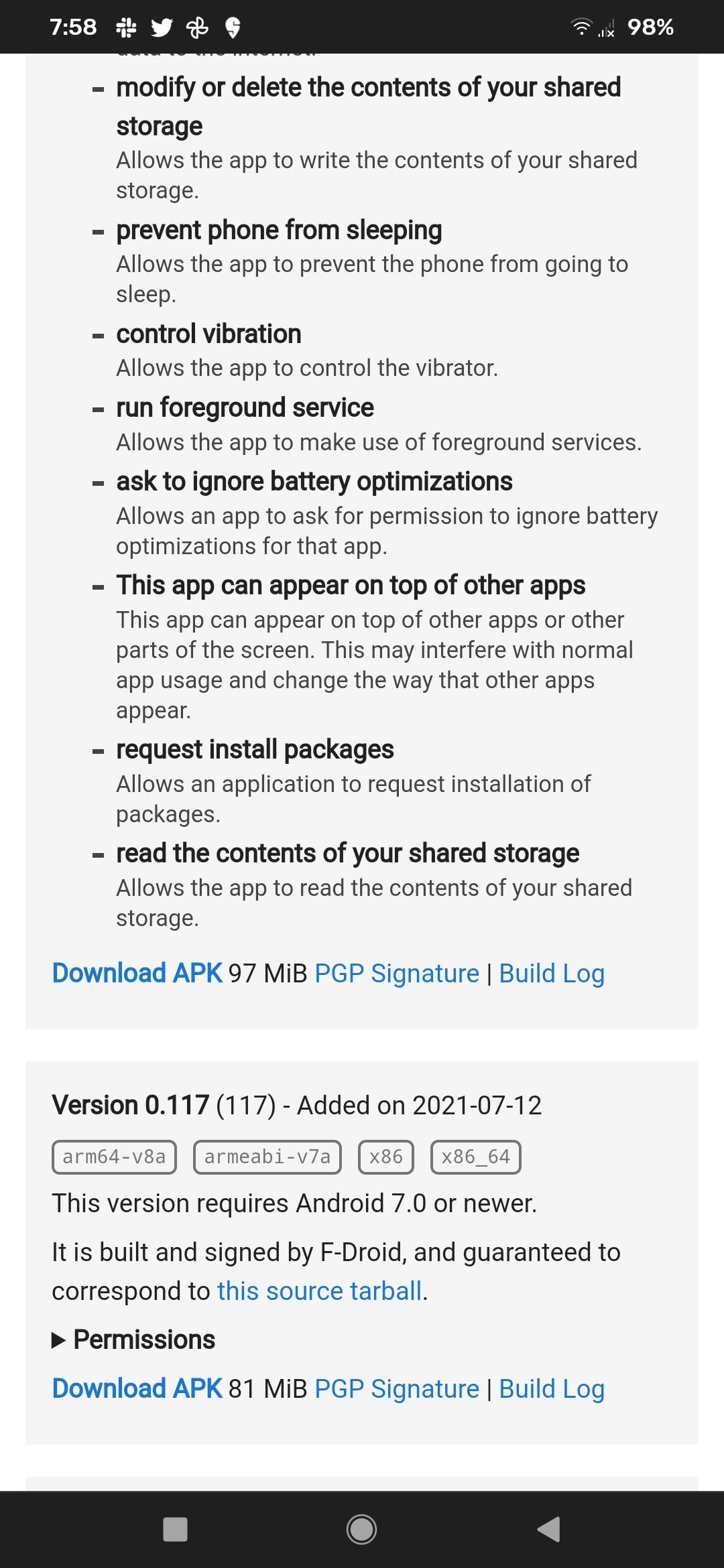
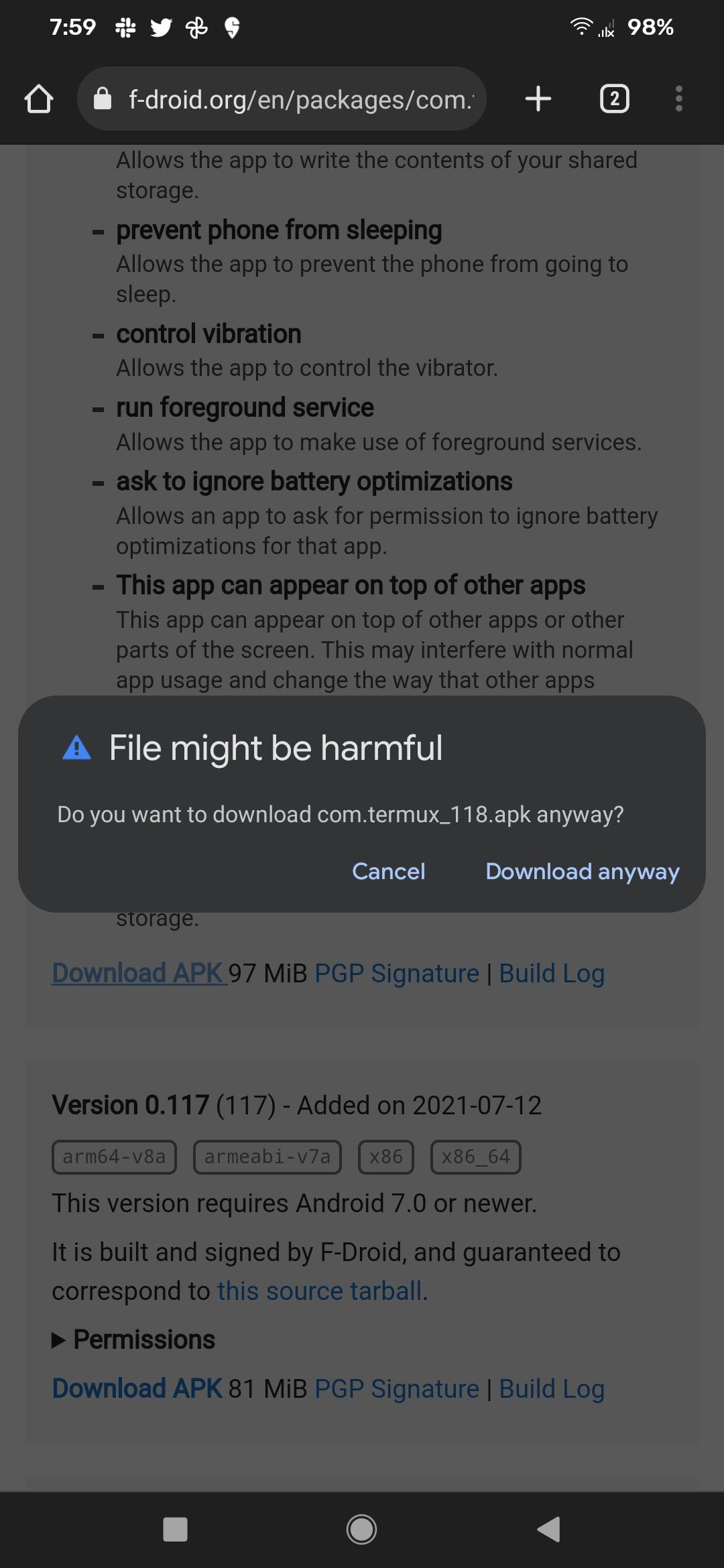
Once downloaded, locate and tap on the APK file to begin the installation. When asked for confirmation, tap Install.
Although Termux is available to download from the Google Play Store, as of this writing, the pre-configured repositories throw a 404 error when you try to install a package or update existing ones.
How to Install Python on Termux
Before installing Python, the first step is to update existing packages. The default package manager on Termux is pkg, which is quite similar to Debian or Ubuntu's APT in terms of syntax and arguments.
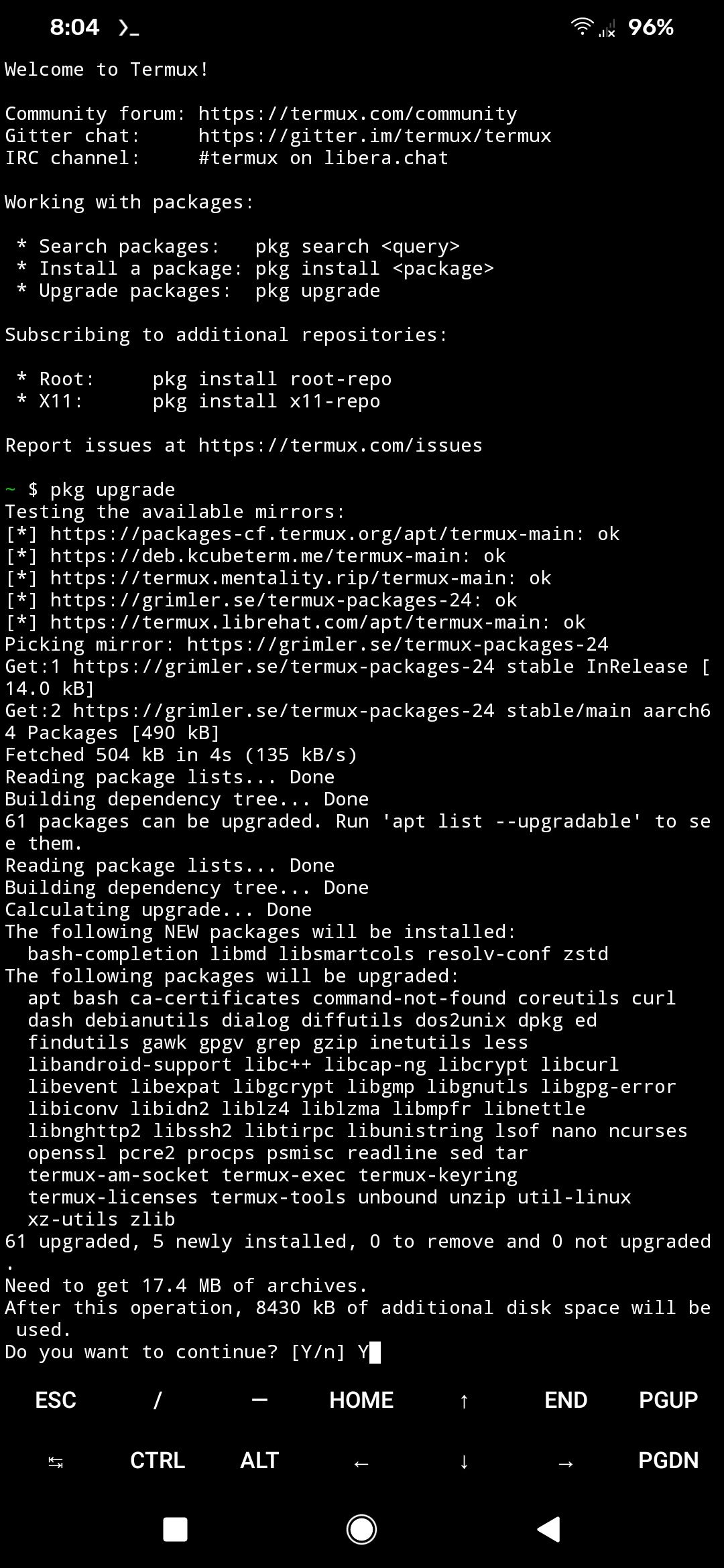
To update packages on Termux, run:
pkg upgrade When prompted for Y/N confirmations, tap Enter to go with the defaults. You'll have to do this a couple of times during the process.
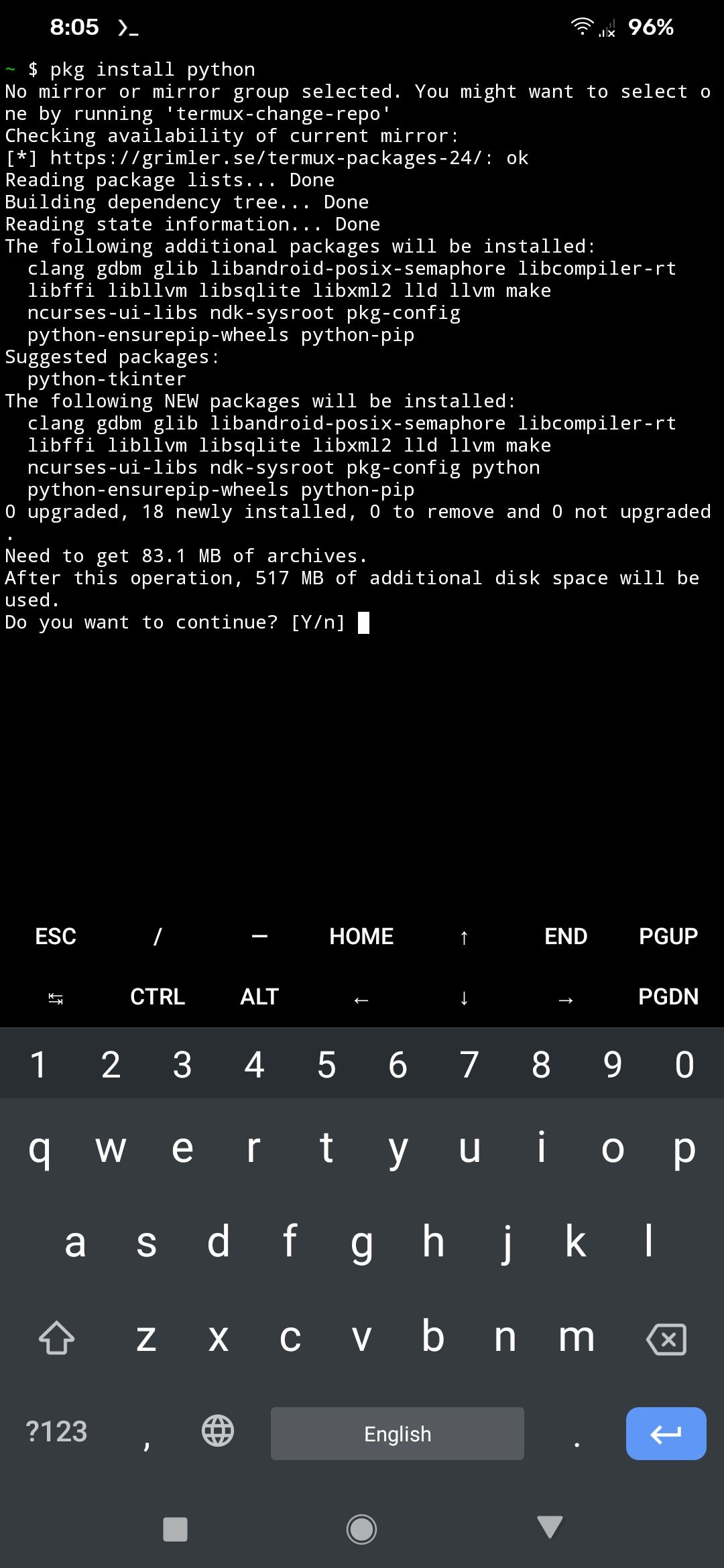
Then, enter the following command to install Python:
pkg install python Enter Y when prompted for confirmation.
If you wish to install Python 2 instead, run:
pkg install python2 PIP and PIP2 will be installed along with the python and python2 packages, respectively, so rest assured you can install libraries and modules that you frequently work with.
Running the Python Interactive Shell
With Python installed, it's time to test whether the installation was successful. In the terminal, enter "python" to launch the interactive shell ("python2" if you installed the old version).
If everything went well, you'll see the version of Python listed at the top along with some helpful information. As with any other language, test out the interpreter by typing the following statement to print "Hello, World":
print("Hello, World") The output will display the string "Hello, World" and then switch back to input mode. When you've played with the interactive shell enough and want to go back to the terminal, type "exit()" and hit Enter.
Writing Your First Python Script on Termux
To take it a step further, why not create a Python script and execute it using Termux? To begin, first open nano, a terminal-based text editor for Linux. If you want to use another text editor, feel free to install it with the pkg install command.
Enter the following to create a new Python script file in the current directory:
nano script.py Add the following lines of code to the file:
 print("Hello, World")
name = input("What's your name? ")
print("Enjoy Python programming on Termux", name)
To save changes to the file, tap the Ctrl button and hit O. Then, press Enter to save the file. To exit nano, tap Ctrl and X.
Run the script by issuing the following command:
python script.py Python 2 users would need to substitute "python" in the above command with "python2". The program will display "Hello, World" and ask for your name. Once you specify that and tap Enter, it'll output the final string with your name appended at the end.
You can also use PyDroid to write Python code on your Android smartphone. In addition to Python programming, Termux lets you use the Linux command line, including all the standard utilities.
Python Programming From the Comfort of Your Smartphone
Coding on a smartphone sounds challenging, but it's actually a great way to play around with programming languages and learn more about them while having fun.
While developing a full-fledged application using your smartphone is complicated, it is possible, though time-consuming. But before you can do that, you should familiarize yourselves with Python or some other programming language.


Comments
Post a Comment