Why you might want to encrypt the SD card on your Galaxy S7 - Android Central
Why you might want to encrypt the SD card on your Galaxy S7 - Android Central |
| Why you might want to encrypt the SD card on your Galaxy S7 - Android Central Posted: 07 Apr 2016 12:00 AM PDT 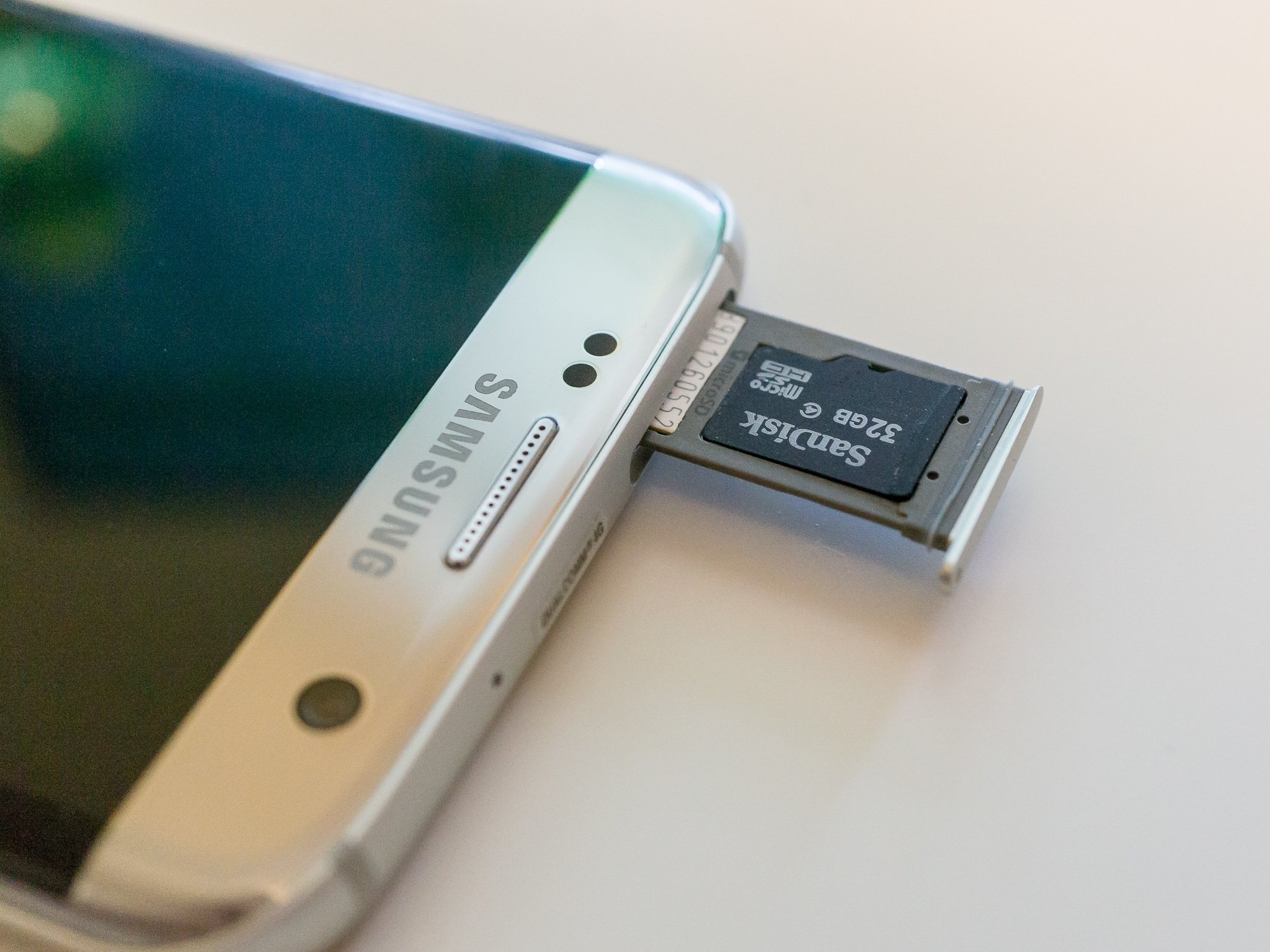 Everyone is happy that Samsung has brought expandable storage back to the Galaxy S7 series. Things aren't perfect — plenty still prefer how SD cards worked with KitKat on their Galaxy phones — but for the average user who just wants to store music, movies, photos and other documents on their removable card, it's a workable solution. It's also something that Google and Samsung will continue to work on, keeping things secure and consistent while still being expandable. Something a lot of people don't think about, though, is encrypting the removable storage on their Galaxy S7. Encryption is all over the tech news because of recent events between the FBI and Apple, and we can take a few minutes and make sure everyone knows what options are available and how things work when it comes to protecting the data on your SD card. Encryption is a means of taking data and wrapping it up in a layer that can't be opened without the proper credentials. There are plenty of ways it can be done, and it's one of those things that has experts working on improving every day. There are also other experts working every day to try and break it.
In simple terms, when you lock something with an encryption method, the only way to access it is with the key. Any encryption can be broken by someone with the right tools, the right knowledge and a lot of time and processing power. The goal is to make an encryption method strong enough so that it's not practical to try and break it. When it takes the bad guys 10 years on the most powerful computer to get through, you've taken away any incentive to brute-force a way in. That's why how you apply and use the keys to get in is important. There's no sense making the encryption strong enough to deter an attack when you make it easy to get to the keys. On Android, the key isn't your device password, but your device password grants access to the method to get the key. Using hardware inside your phone, a 128-bit key is created and stored and the only way anything has access to this key is when it's granted by the system. You give this access when you install (trust) an application then sign in or unlock your phone with a password. You can read all the technical documentation in the Android developer documentation, and Tamoghna Chowdhury gives an excellent breakdown at Stack Exchange for further explanation. Why should (or shouldn't) I encrypt my SD card?This is easy to answer. If you don't want someone who isn't you, but has access to your phone, to be able to pull the SD card and put it in another computer to see what's on it, you need to encrypt it. Head into your GS7's settings and find the Lock screen and security menu to do it.
But encrypting an SD card also has a drawback — you can't ever read the contents in another device. That means if you break your phone while the SD card was encrypted, everything on it is gone. Because of the way encryption works, even using the same password on a different phone of the same model doesn't give you access — the actual key is that random number stored in the TEE (Trusted Execution Environment) in the phone. Outside of the phone you originally used to encrypt your card, your only option to ever use the card again is to erase it and start fresh. If you're storing things like confidential business documents on your SD card, this is a good thing. If you're using the card to keep memories from your camera, this isn't such a good thing. You'll need to decide if what you store on the card is important enough to lose forever if it falls out of your hands, or important enough that you don't want to lose it when or if your phone breaks. My solution? I only store photos and a few (very few) videos on my SD card. I just grabbed an old slow one I had lying around until a great 200GB card goes back on sale. I do encrypt the SD card in my T-Mobile Galaxy S7 edge. But (and this is important) I also make a practice of backing up anything I can't replace, like photos or videos of family and friends, online or locally on my computer. I do both — Google Photos for pictures and YouTube for videos, as well as periodically backing up everything at full resolution and quality on my own physical network storage. I'm not keeping anything really confidential on my SD card, but I still don't want someone rifling through pictures of my wife or my grandkids. Call me old fashioned. You'll need to think and decide for yourself whether or not to encrypt your SD card. There is no wrong answer.  |
| Coronavirus Spawns Class-Action Lawsuits as Consumers Seek Refunds - Moneylife Posted: 14 May 2020 12:41 AM PDT  The Indian Computer Emergency Response Team (CERT-In) has issued a warning about a banking trojan called EventBot, which is affecting users of financial transaction apps worldwide. In a statement, CERT-In says, "It has been observed that a new android mobile malware named EventBot is spreading. It is a mobile banking trojan and info-stealer that abuses Android's in-built accessibility features to steal user data from financial applications, read user SMS messages and intercepts SMS messages allowing malware to bypass two-factor authentication." EventBot targets over 200 different financial applications including banking applications, money transfer services and cryptocurrency wallets and financial applications based in US and Europe region at the moment but some services may affect Indian users as well, it added. EventBot largely targeting financial applications like Paypal Business, Revolut, Barclays, UniCredit, CapitalOne UK, HSBC UK, TransferWise, Coinbase, and paysafecard. According to CERT-In, EventBot is not seen on Google Playstore yet, as it uses several icons to masquerade as a legitimate application such as Microsoft Word, or Adobe flash and using third party application downloading sites to infiltrate into victim device. Once installed on victim's Android device, EventBot asks permissions such as controlling system alerts, reading external storage content, installing additional packages, accessing internet, whitelisting it to ignore battery optimisations, prevent processor from sleeping or dimming the screen, auto-initiate upon reboot, and receive and read SMS messages, continue running and accessing data in the background. In addition, it prompts user to give access to device's accessibility services. Also, it can retrieve notifications about other installed applications and read contents of other applications. Over the time It can also read LockScreen and in-app PIN that can give attacker more privileged access over victim device. A repeated pattern identified based on the specific URL gate_cb8a5aea1ab302f0_c after mapping of C2 servers. Also, a potential link with an another infostealer was identified. The IP address of two domains; ora.carlaarrabitoarchitetto[.]com and ora.studiolegalebasili[.]com, is 31.214.157[.]6. This IP was previously hosting a domain next.nextuptravel[.]com, which was the C2 for an Android infostealer responsible for several attacks in past. Countermeasures and Best Practices for Prevention:
 |
| You are subscribed to email updates from "encrypt sd card,best phone for encryption,are android phones encrypted" - Google News. To stop receiving these emails, you may unsubscribe now. | Email delivery powered by Google |
| Google, 1600 Amphitheatre Parkway, Mountain View, CA 94043, United States | |


Comments
Post a Comment